



If your WordPress site takes a second or more before anything starts to load, the server is usually the bottleneck, and server-side caching is the fix that makes the biggest difference. This guide shows you how to measure that delay, then walks through LiteSpeed Web Server on Plesk, the LiteSpeed Cache plugin and the QUIC.cloud CDN.
This post covers the server side. Image sizes, plugin count and theme weight are the other half of WordPress speed, and they're covered in how to optimize your WordPress theme performance.
Step 1: Measure server response time first
Run your home page and one typical inner page (a product or a post) through Google PageSpeed Insights and note the mobile results:
- Time to First Byte (TTFB): how long the server takes to start sending the page. Google treats 0.8 seconds or less as good. If you're well over that, caching and hosting are where to start.
- Largest Contentful Paint (LCP): when the main content appears. Aim for under 2.5 seconds.
- Interaction to Next Paint (INP): how quickly the page responds to taps and clicks.
Write the numbers down and re-test after each change, so you know what actually helped.
What server-side caching does
Without caching, WordPress runs PHP and queries the database to build every page on every visit. A server-side page cache keeps the finished HTML. The next visitor gets that copy straight away, and PHP and MySQL aren't involved at all.
Which kind you can use depends on your server:
- Your host runs LiteSpeed (many cPanel and Plesk hosts do): use the free LiteSpeed Cache plugin. Its page cache works through the web server itself, which is faster than a cache written in PHP. The setup is below.
- Apache or Nginx with no server cache: a PHP-based cache plugin such as WP Super Cache (free, by Automattic) is simple and works on almost any host.
- Managed WordPress hosting usually caches at server level already. Check your host's docs before adding a cache plugin, because two page caches can conflict.
Memcached and Redis are different: they're object caches that store database query results, and they work alongside a page cache rather than replacing it.
Check your hosting
Caching can't fully make up for an overloaded server. Free hosting is too slow for a real site. Cheap shared hosting is fine for small sites, but you share CPU and memory with many other accounts, so it slows down at busy times. A VPS or a managed WordPress plan gives you dedicated resources, and usually a choice of web server.
If TTFB stays high even with caching on, the server is the limit, and better hosting will do more than another plugin.
Walkthrough: LiteSpeed Web Server on a Plesk server
This part is for people who run their own Plesk server. On shared hosting, ask your host whether they run LiteSpeed and skip to "Install and configure LiteSpeed Cache".
LiteSpeed Web Server is a commercial, Linux-only replacement for Apache. It reads Apache's configuration, so your sites keep working, and adds the built-in page cache that the LiteSpeed Cache plugin talks to. To install from the command line instead, follow LiteSpeed's Plesk installation guide.
Before you install
- A working Plesk server with Apache.
- A full backup, if sites on the server are already live.
- If Apache isn't using FastCGI as its PHP handler, switch it to FastCGI so LiteSpeed can follow the same PHP settings.
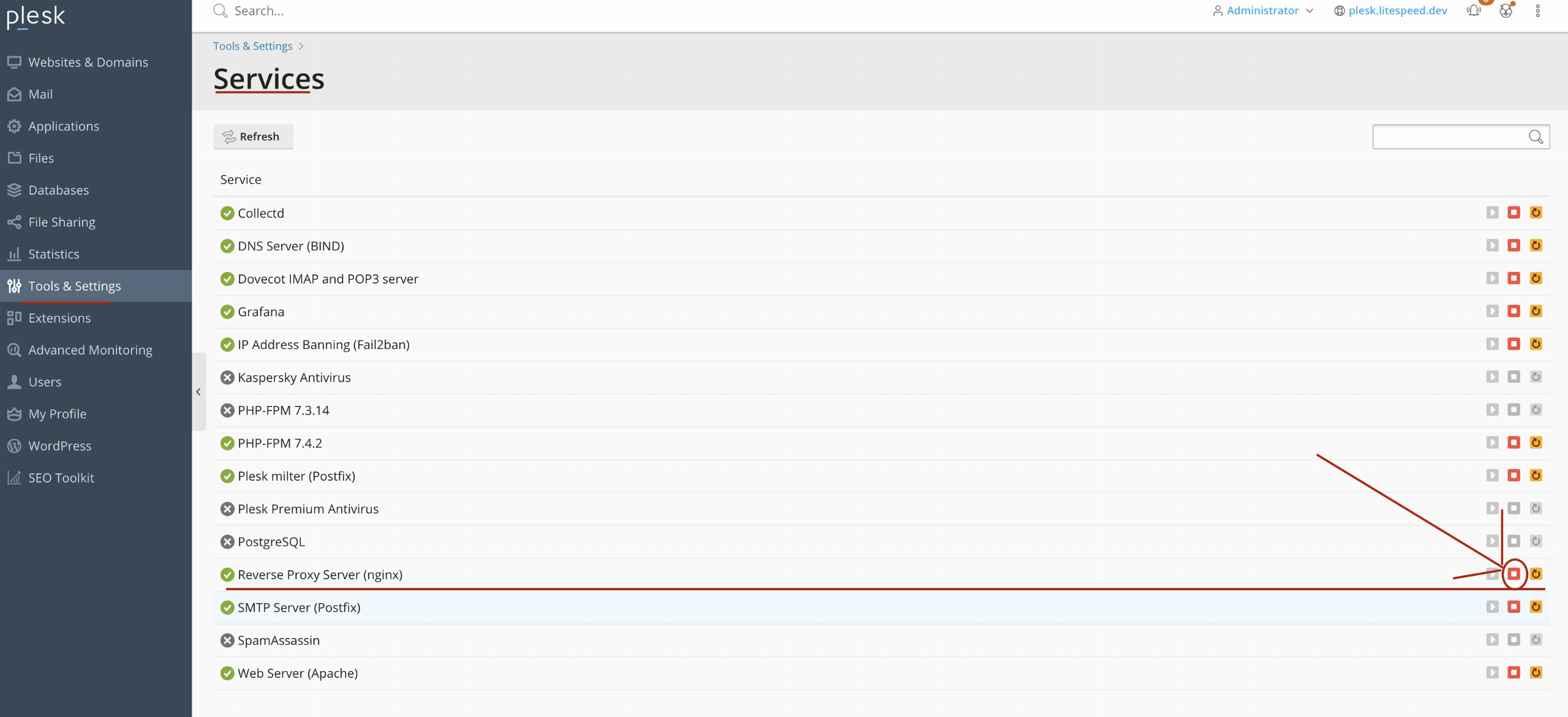
- Stop the Nginx reverse proxy. Recent Plesk versions put Nginx in front of Apache. LiteSpeed needs to handle traffic itself; otherwise it won't start properly and can take your sites down. In Plesk, go to Tools & Settings → Services and stop Reverse Proxy Server (nginx).
Install the LiteSpeed Plesk extension
- Download the Plesk extension from the LiteSpeed website.
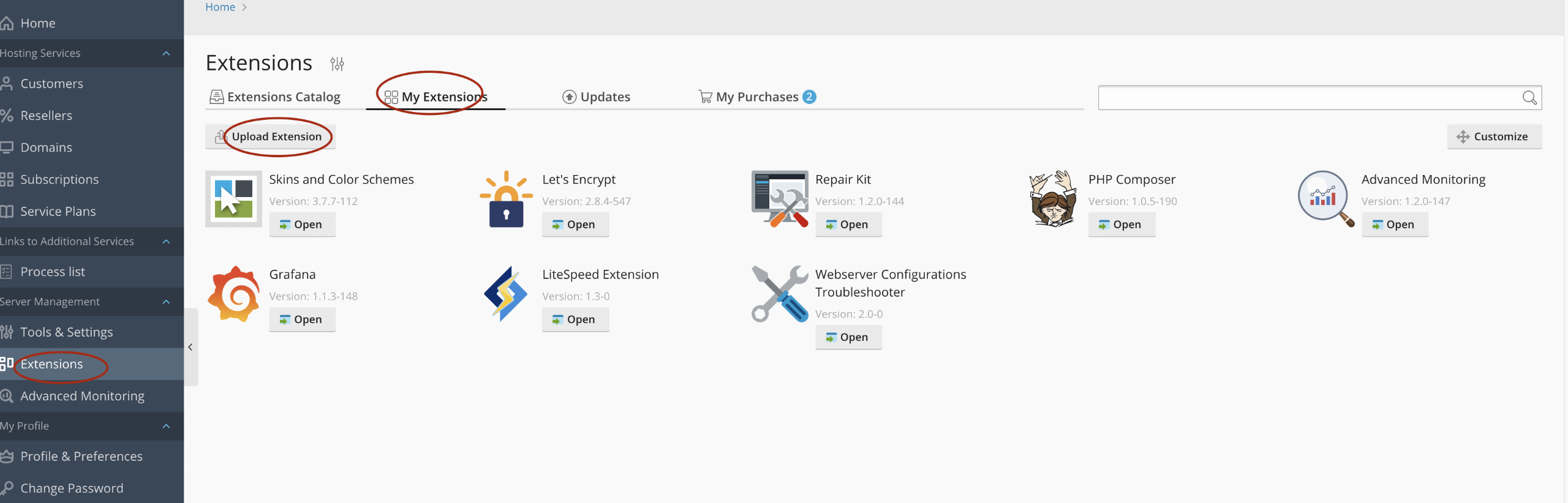
- Log in to Plesk and go to Extensions → My Extensions. If LiteSpeed Extension isn't listed, click Upload Extension and upload the file you downloaded.
- Click Open on the LiteSpeed Extension.
- Choose Install LiteSpeed Web Server.
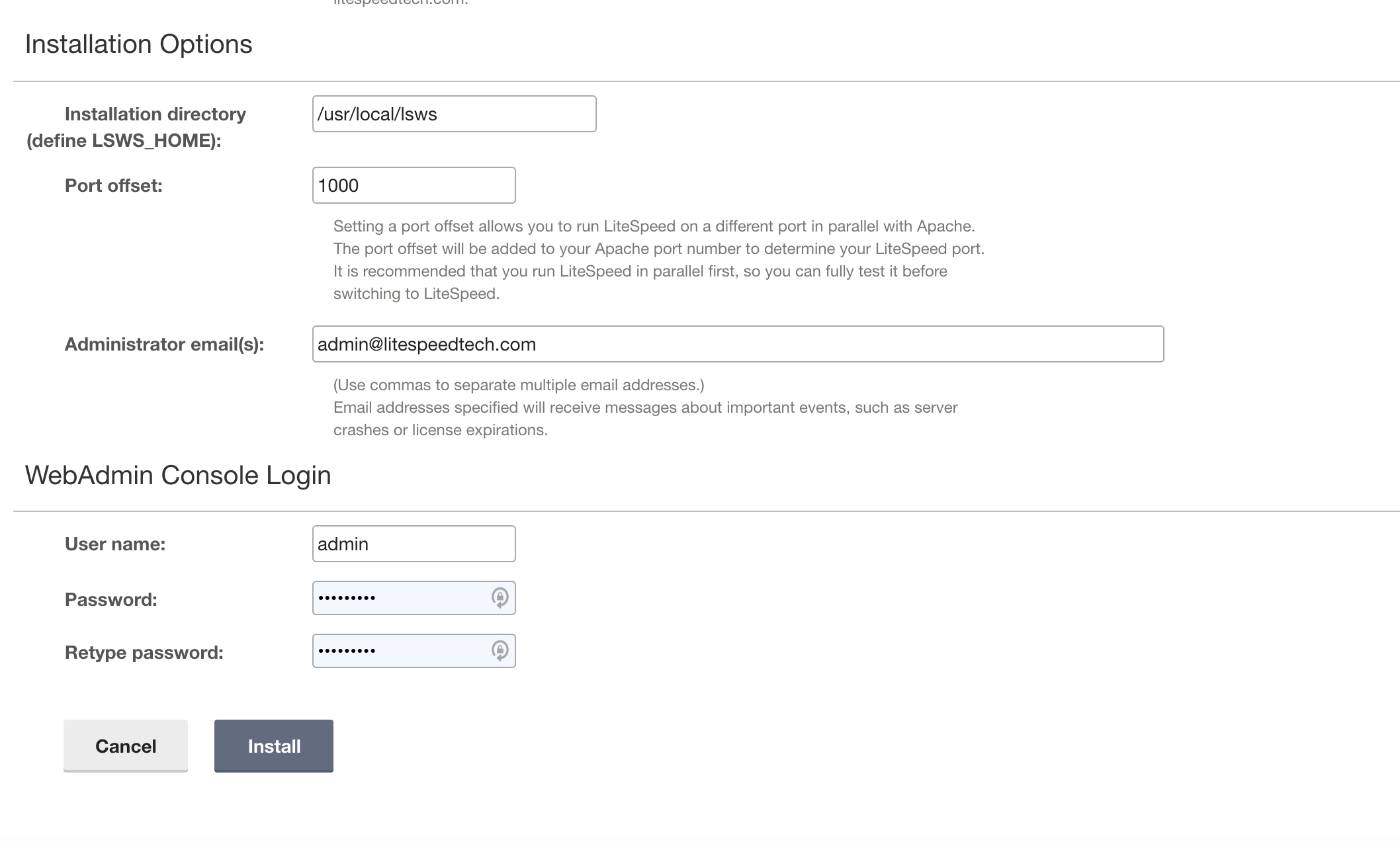
- Under Installation Options, the defaults are fine. The default port offset of 1000 runs LiteSpeed next to Apache on a different port, so you can test it before switching over.
- Under WebAdmin Console Login, set a password. Change the user name from
admintoo.
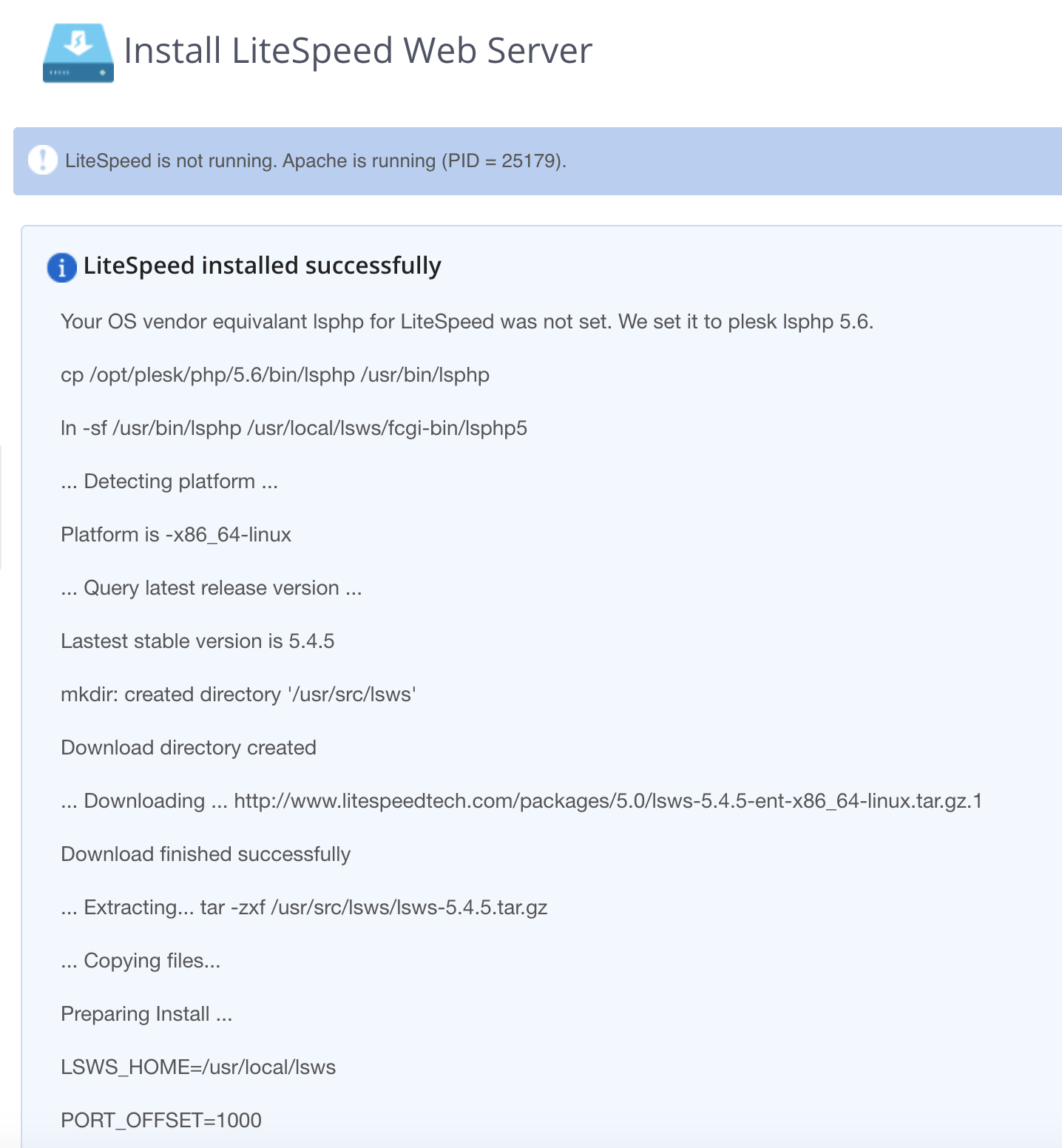
- Click Install. It takes a few minutes, and the screen shows the install log when it's done.
- On the extension's main screen, click Restart LiteSpeed.
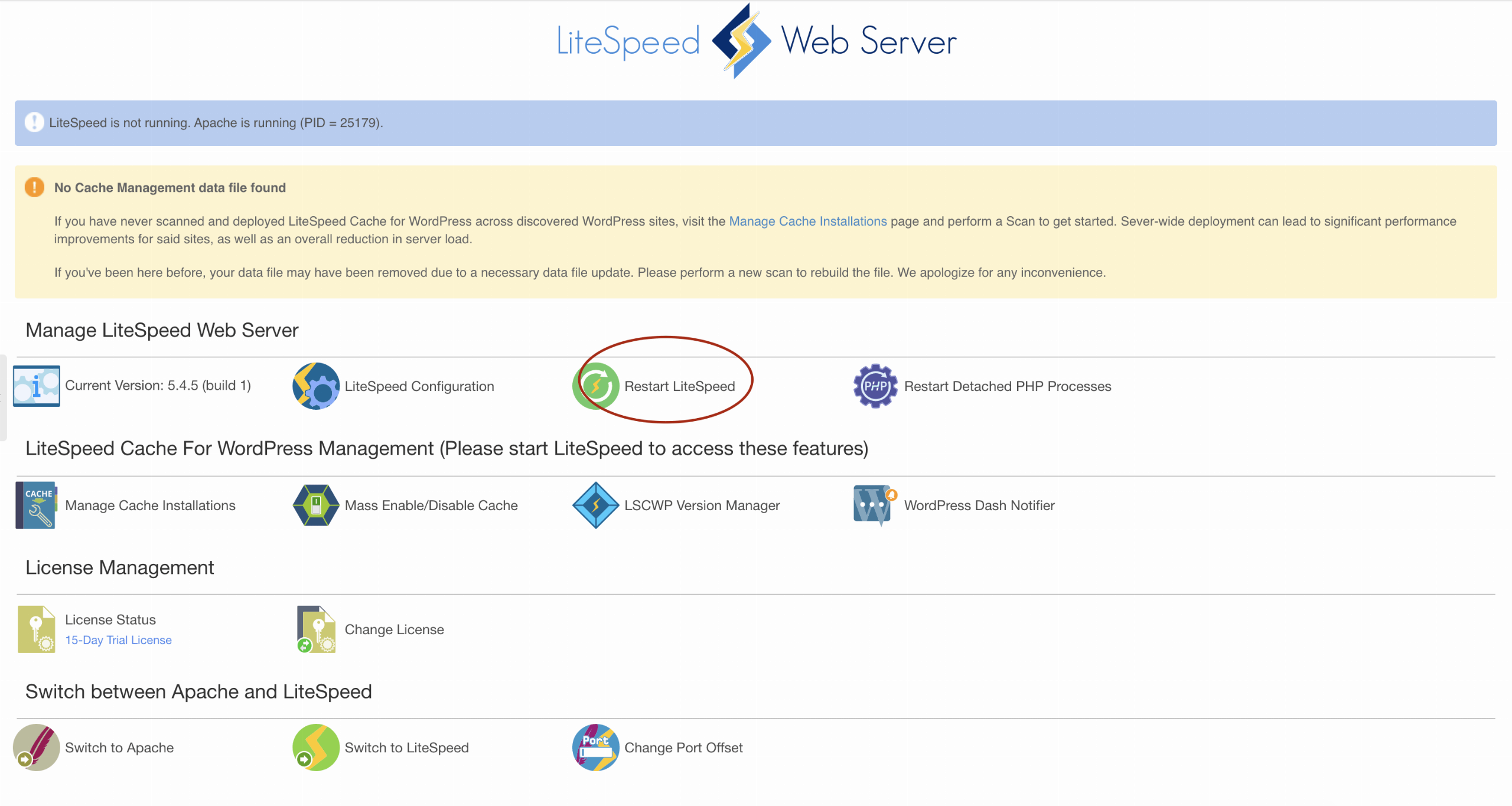
- Finally, click Switch to LiteSpeed under "Switch between Apache and LiteSpeed". Load one of your sites straight away to make sure it works. If anything breaks, Switch to Apache on the same screen puts things back.
The screenshots come from one version of the extension. Labels and layout can change between releases, so if a button isn't exactly where shown, look for the same wording nearby.
Install and configure LiteSpeed Cache
- In WordPress, go to Plugins → Add New Plugin, search for LiteSpeed Cache (by LiteSpeed Technologies), then click Install Now and Activate.
- Open LiteSpeed Cache → Cache. If you see a notice that LiteSpeed isn't detected on the server, the page cache won't work. The plugin's other optimisation features still do, but check with your host.
- Make sure Enable Cache is on. The defaults on this tab suit most sites.
- For a quicker start, LiteSpeed Cache → Presets applies a ready-made set of options. Start with a moderate one, then test your forms, cart and checkout before going further. The plugin has its own WooCommerce tab for shop settings.
- Re-run PageSpeed Insights and compare TTFB with your notes from Step 1.
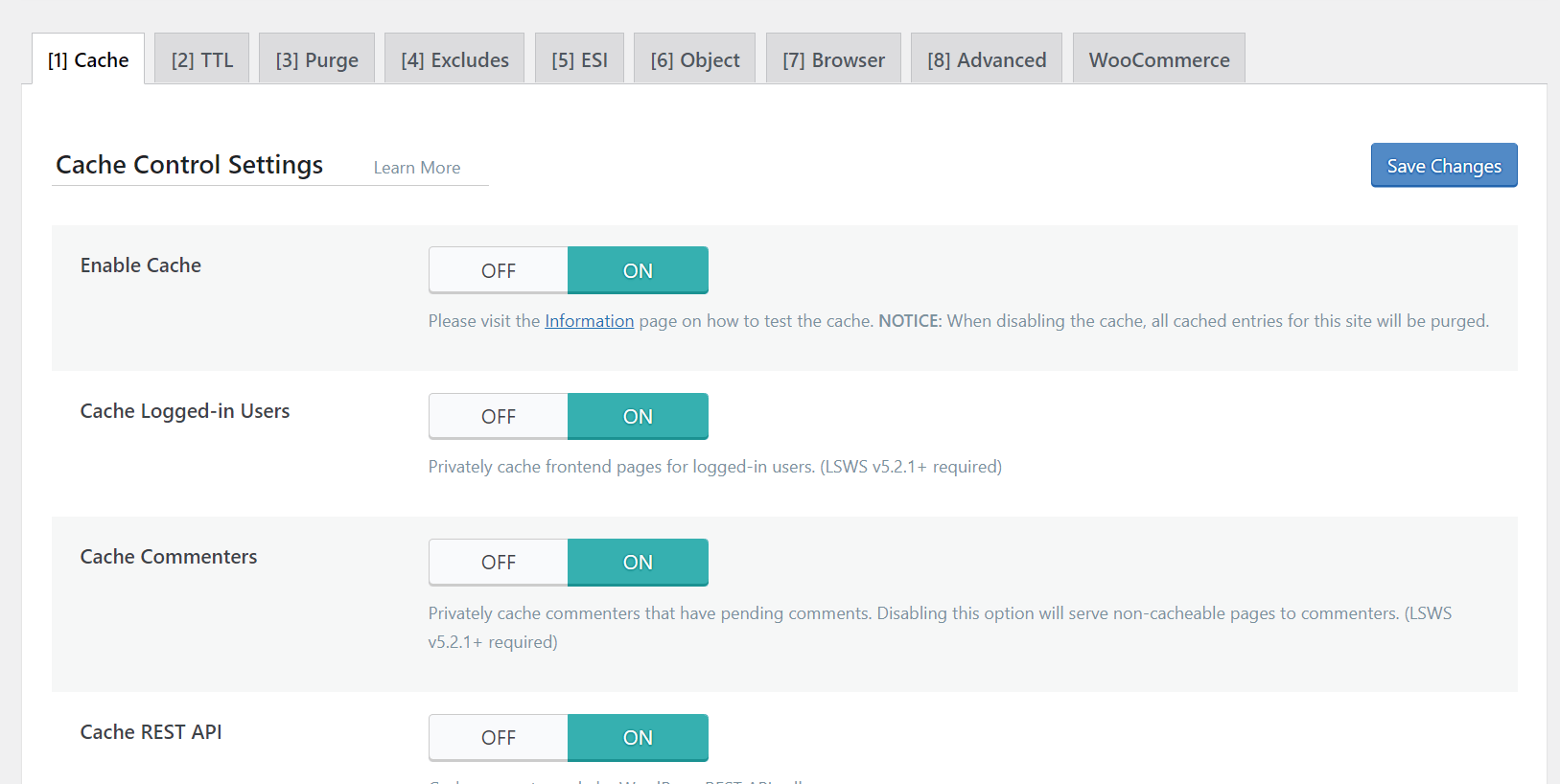
Every option is explained in the LiteSpeed Cache documentation.
Optional: add the QUIC.cloud CDN
A CDN keeps copies of your pages and files on servers around the world, so visitors far from your server get them faster. QUIC.cloud is LiteSpeed's own CDN. It can also serve LiteSpeed's page cache for sites whose server doesn't run LiteSpeed.
- In the LiteSpeed Cache settings, link the site to QUIC.cloud. The plugin walks you through creating or connecting a QUIC.cloud account.
- In the QUIC.cloud dashboard, turn on the CDN for your domain.
- QUIC.cloud shows you the DNS change to make, usually a CNAME record or moving your DNS to QUIC.cloud. Make it with your domain registrar or DNS provider.
- Once DNS has updated, test again with PageSpeed Insights from a location far from your server.
Next steps
Once the server responds quickly, the remaining delay is usually in the page itself: heavy images, too many plugins and a bloated theme. Work through how to optimize your WordPress theme performance next. If a plugin is slow and you want to find out why, Query Monitor and the other PHP profiling tools will show you where the time goes.
A site that suddenly gets slow, or starts redirecting to strange pages, may have been compromised. In that case, follow our hacked WordPress recovery steps.

Written by
The people behind Wow Themes
The Wow Themes team builds and supports WordPress themes and plugins, plus Vue and React templates. On the blog we write about building, running and securing websites: WordPress and WooCommerce, JavaScript, performance and the tools we use day to day.


Comments
No comments yet.
Comments are closed on this post.